10 Proven Secrets to Fix Your Mac Running Slow in 2026: Save ₹1.5 Lakh on a New MacBook!
Spread the loveIt is 11:00 AM on a humid Tuesday. You are sitting in a swanky co-working space in Bengaluru’s Koramangala or perhaps a high-rise office overlooking the Mumbai skyline. You have a pitch meeting in five minutes, and your deck is ready. But as you try to switch from your browser to Keynote, it…
It is 11:00 AM on a humid Tuesday. You are sitting in a swanky co-working space in Bengaluru’s Koramangala or perhaps a high-rise office overlooking the Mumbai skyline. You have a pitch meeting in five minutes, and your deck is ready. But as you try to switch from your browser to Keynote, it happens—the dreaded “spinning beachball” of death. Your cursor freezes, your pulse quickens, and you realise your Mac running slow has moved from a minor annoyance to a professional liability.
Even in 2026, when Apple Silicon chips have reached staggering levels of efficiency, many Indian professionals find themselves asking, “Why is my Mac running slow?” We were promised that the transition to M-series chips would end the era of lag, but the reality of 2026 is different. We are now dealing with massive software bloat driven by integrated AI local models, 8K video editing requirements, and browser engines that consume RAM like a wedding feast. If you are facing a Mac running slow, the instinct is often to look at the latest MacBook Pro prices at an Apple Premium Reseller and sigh at the ₹1.5 Lakh price tag.
However, as a tech evangelist who has seen the evolution of macOS over fifteen years, I am here to tell you that your hardware is likely not the problem. Roughly 50% of the issues leading to a Mac running slowly are caused by “heavy data” and poor resource management rather than an outdated processor. Before you break your fixed deposit or sign up for a heavy EMI for a new machine, you need to apply these “paisa-vasool” (value-for-money) strategies to reclaim your machine’s original speed. This guide will walk you through ten proven methods to fix your Mac running slow and keep it future-proof for years to come.
Mac Running Slow
Understanding the “Math” of Mac Slowness
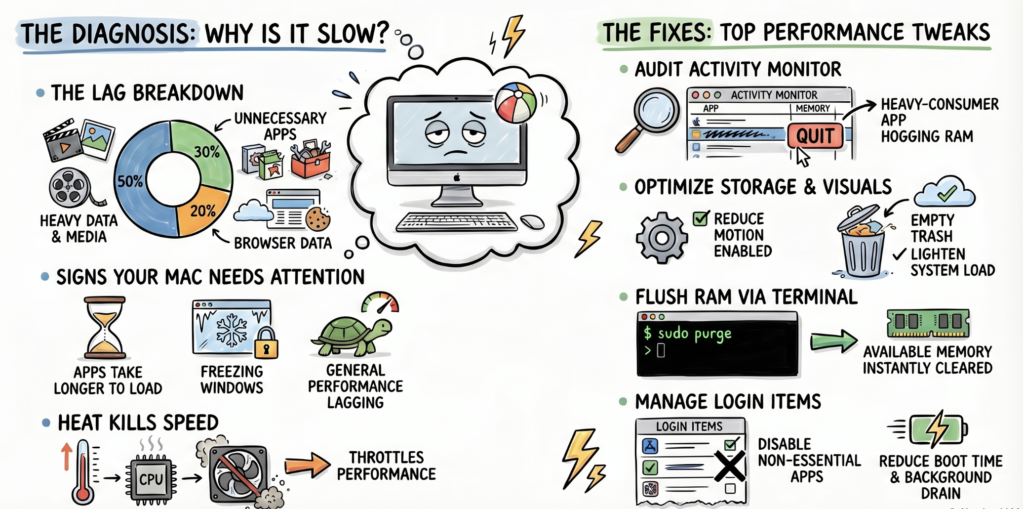
To fix a Mac running slow, we must first look at the data. In my years of troubleshooting for the Indian market, I’ve noticed that our digital habits are unique. We are a “media-heavy” culture. From storing thousands of high-resolution RAW files from a cousin’s wedding to keeping every “Good Morning” video ever sent on WhatsApp Web, our drives are digital godowns that never get cleared.
The source data suggests a very specific “math” behind a Mac running slow in 2026:
50% Heavy Data and Media Files: This is the lion’s share. High-resolution festival photos, 4K (and now 8K) family videos, and cached media are the primary culprits.
30% Unnecessary Applications: These are the programmes we downloaded for a one-time project—perhaps a specific VPN or a legacy photo editor—that now sit idle, hogging space and background resources.
20% Browser Data: As we move toward a cloud-first work culture, our browsers have become the most demanding software on our systems.
Understanding this breakdown is essential. If your Mac running slow is a result of storage congestion, no amount of RAM will fix it. We need to tackle these three pillars systematically to ensure your machine remains “paisa-vasool” for its entire lifecycle.
Taming the Background “Resource Hogs” via Activity Monitor
The first step in diagnosing a Mac running slow is to open the “hood” and see what’s burning the fuel. In macOS, this is the Activity Monitor. Think of it as the air traffic control for your processor.
Step-by-Step Guide to Resource Management:
Open Activity Monitor (Cmd + Space, then type it in).
Navigate to the Memory tab. This is where most battles against a Mac running slow are won.
Click the Memory filter at the top. This sorts programmes by their current RAM consumption.
In 2026, you will likely see AI background tasks or heavy web apps at the top. If you find a third-party programme consuming several gigabytes of RAM while you aren’t even using it, that is a prime suspect for your Mac running slow.
Pro Tip: Technical Safety First! When cleaning up, you will see processes that look like gibberish. Do not quit vital system processes like WindowServer, kernel_task, or sysmond.
kernel_task: This is the OS managing your CPU’s temperature. If it’s high, it’s actually trying to save your Mac from overheating.
WindowServer: This handles everything you see on the screen. Quitting it will log you out instantly.
sysmond: This is the system monitor itself.
In the Indian context, the biggest culprit is often the combination of a dozen open Chrome tabs, WhatsApp Web, and a heavy creative suite like Adobe or Final Cut. Managing these “hogs” is the fastest way to stop your Mac from running slow during a critical workday.
Looking for Best MacBook in 2026 which is easy on budget as well, look no further than the MacBook Air M5.
Decluttering Your “Digital Godown” (Hard Drive Management)
In India, we have a habit of never throwing anything away “just in case.” We treat our hard drives like a “godown” (warehouse)—stuffing it with old movies, duplicate photos, and “Untitled Folder 5” until there is no room to move. An overloaded drive is the #1 reason for a Mac running slow because the system loses its “swap space”—the temporary room it uses to move data around.
How to Clean Your Drive Manually:
The Desktop Trap: Many users keep hundreds of files on the desktop. Each icon is a window that macOS has to render constantly. Move these into a single “Archive” folder to see an immediate boost.
The Movie Purge: 4K movies are massive. If you’ve watched it, delete it or move it to an external drive.
System Junk: This is the hard part. Your Mac is filled with hidden caches, old logs, and language packs for languages you don’t speak.
While manual cleaning helps, a Mac running slow often requires a deeper surgical strike. Using a utility tool like CleanMyMac is highly recommended here. It can reach into the system folders where these “invisible” files live and safely remove gigabytes of junk in seconds. When your SSD has room to breathe, your Mac running slow issues will likely vanish.
Beating the Indian Heat (Managing Overheating)
We must address a challenge specific to our region: the climate. Whether you are in the humid heat of Chennai or the dry, dusty summers of Delhi, environmental factors play a massive role in your Mac running slow. When the internal temperature rises, the Mac engages in “thermal throttling,” which essentially cuts the processor’s speed in half to prevent it from melting.
Quick Fixes for Thermal Management:
Browser Tab Discipline: Every open tab in Safari or Chrome is a process that generates heat. If your fans are spinning and your Mac running slow is becoming unbearable, close those tabs. Use the “Add Bookmark” feature to save them for later.
Extension Audit: Many of us use “free” extensions that are poorly coded and run your CPU at 100% in the background. In Safari, go to Settings > Extensions and prune the list.
The Dust Factor: If you live in a dusty area, your Mac’s internal fans might be clogged. A professional cleaning at a service centre in Nehru Place or Lamington Road can sometimes do more for a Mac running slow than any software fix.
Update macOS: Don’t ignore those notifications! Even minor macOS updates contain critical thermal management patches. Keeping your software current is a “paisa-vasool” way to ensure your hardware isn’t working harder than it needs to.
The Silent Performance Thief (Malware Scanning)
There is a common myth in India that “Macs don’t get viruses.” In 2026, this is dangerously incorrect. While macOS is secure, it is not invincible. Malware today doesn’t always steal your data; sometimes, it just steals your “juice.” Crypto-miners can hide in your system, using your powerful M-series chip to mine digital currency, leaving you with a Mac running slow and a battery that drains in an hour.
Digital security is now a pillar of performance. If you have noticed a sudden, unexplained drop in speed, you must run a malware scan. Removing these malicious background processes is often the “silent fix” that restores a Mac running slow to its former glory. For the modern Indian professional handling sensitive client data, this isn’t just about speed—it’s about survival.
Optimising Storage with Built-in Apple Tools
Apple provides some excellent native tools to help with a Mac running slow, though they are often buried in the settings. Navigate to System Settings > General > Storage.
Here, you will see the “Store in iCloud” option. For most Indian users, our local SSD is the bottleneck. By offloading those massive 4K wedding videos or high-resolution portfolio projects to iCloud, you free up the local “swap space.” A rule of thumb for 2026: once your SSD is 80% full, you will start seeing your Mac running slow. Keeping it under that threshold ensures the system can use the SSD as temporary RAM when needed, maintaining peak velocity.
Flushing RAM Without a Hardware Upgrade
In the old days, if you had a Mac running slow, you would just head to the local computer market and add 8GB of RAM. In 2026, that is impossible; the RAM is soldered directly onto the Apple Silicon chip. An upgrade means buying a whole new machine—unless you know the Terminal trick.
If your system is lagging and the Activity Monitor shows “Memory Pressure” in the red, you can manually flush your RAM.
The Terminal Shortcut:
Open Terminal (Applications > Utilities).
Type: sudo purge and hit Enter.
Important Note for Indian Users: When you type your password, the cursor will not move. This is a security feature, not a sign of your Mac running slow or your keyboard being broken. Just type it blindly and hit Enter.
“By freeing up memory, you give your Mac more room to run smoothly, especially when you’re juggling a lot of apps or doing something that requires a lot of power.”
This command forces the system to clear its disk cache and release inactive memory, providing an instant “paisa-vasool” speed boost without costing a single Rupee.
Auditing Your Internet vs. Your Hardware
Is your Mac running slow, or is it just your “Jio Fiber” or “Airtel” acting up? This is a critical distinction. Often, what feels like system lag is actually “latency”—the delay in data reaching your computer.
Proven Connectivity Fixes:
Ethernet is King: If you are doing a Zoom call or uploading heavy files, use a physical Ethernet cable. It’s more stable than Wi-Fi.
Router Placement: Move your router away from thick concrete walls—a common feature in Indian homes that kills Wi-Fi signals.
Wireless Diagnostics: Hold the ‘Option’ key and click the Wi-Fi icon in your menu bar to run “Wireless Diagnostics.”
Before blaming your hardware for a Mac running slow, ensure your “digital pipe” is actually delivering the data it should.
The “One-In-One-Out” Rule for Applications
We are all guilty of “app hoarding.” We see a cool new AI tool, download it, use it once, and forget it. These “dead-weight” apps are a major contributor to a Mac running slow.
The Audit Process:
Go to Finder > Applications.
Change the view to List and sort by Size.
Identify the “Goliaths”—the massive apps you haven’t opened in six months.
Right-click and Move to Trash.
If an app is being particularly stubborn and causing your Mac running slow right now, use the Force Quit menu (Cmd + Option + Esc). Adopting a “One-In-One-Out” rule—where you delete an old app for every new one you install—will keep your system lean and responsive.
Streamlining Your Startup (Login Items)
Imagine trying to start a scooter in the middle of a monsoon morning. If you try to turn on the lights, the horn, and the indicators all while kicking the starter, the engine will struggle. The same happens with your Mac running slow at bootup.
Many apps give themselves permission to start the moment you log in. To fix this, go to System Settings > General > Login Items & Extensions. You’ll likely see a long list of apps like Spotify, Zoom, or various update-checkers. Disable everything that isn’t essential. Think of it like a crowded Mumbai local train platform—if everyone tries to get through the door at once, nobody moves. By limiting login items, you ensure your Mac running slow issues don’t start the very second you turn it on.
Sacrificing “Shashka” for Speed (Visual Overload)
MacOS is famous for its beautiful visuals—translucency, animations, and the “Genie effect.” In India, we might call this “shashka” (fancy show). While it looks great, it takes a toll on the GPU. If you are dealing with a Mac running slowly, it’s time to choose efficiency over aesthetics.
How to Cut the Visual Bloat:
Reduce Motion: Go to Accessibility > Display and toggle “Reduce Motion.” This stops the “zoom” animations when opening folders.
Scale the Dock: In Desktop & Dock, change the “Minimise windows using” setting from “Genie effect” to “Scale.” It’s a much simpler mathematical operation for your Mac.
Turn off Magnification: It’s a neat trick, but it’s an unnecessary drain on a Mac running slow.
As the authority on performance says: “Your Mac won’t waste power on fancy animations, focusing instead on what matters — speed!” These small changes can make an older MacBook feel five years younger.
Bonus Section: The “Reduce Motion” Trick for Older Macs
For those of you still rocking an Intel-based MacBook Air or an early M1 model, the “Reduce Motion” trick is non-negotiable. As macOS evolves, its graphical demands increase. Older integrated graphics cards simply cannot keep up with the transparency layers of modern versions. By flattening the UI, you allow the graphics processor to focus 100% on your actual tasks, such as rendering a video or compiling code. This is the ultimate “paisa-vasool” hack for stretching the life of your current hardware.
Conclusion: A Future-Proof Mac
In the end, maintaining a high-performance machine in 2026 is about “giving it space to breathe.” Whether that’s physical space by keeping it cool in the Indian heat, or digital space by clearing out your “godown” of old files, a little regular maintenance goes a long way. By following these ten secrets, you aren’t just fixing a Mac running slow; you are effectively saving yourself ₹1.5 Lakh and extending the life of your current investment.
Are you planning to upgrade your Mac this year, or will these “paisa-vasool” tips help you squeeze another two years out of your current machine? Let us know your experience in the comments below!
FAQs
How often should I clean my Mac? For the best performance and to avoid a Mac running slow, I recommend a “digital deep clean” once a month. Clear your browser cache, empty the trash, and run a maintenance script using a tool like CleanMyMac.
Is typing lag a browser or Mac issue? If you only see lag while typing in a specific search bar or on a specific website, it is likely a browser issue. Try clearing your “Site Data” or disabling heavy extensions. If it happens in every app (like Notes or Word), it’s a system-wide Mac running slow issue that needs the Activity Monitor treatment.
How do I verify if my hardware is failing? Before you rush to a service centre in Delhi or Chennai, use the free Apple Diagnostic tool. Restart your Mac and immediately hold the ‘D’ key (for Intel) or hold the Power button (for Apple Silicon) until you see startup options. If it gives you a clean bill of health, your Mac running slow is purely a software problem that you can fix at home for free.
What apps should I delete first? Focus on old games, duplicate photo libraries, and secondary browsers. Also, look for “helper” apps that remain even after you think you’ve deleted the main programme.